
SAF North America Congress Networking App
Build connections before you arrive, get matched with the right people through AI, and book meetings with the contacts who matter, all from your phone or laptop.
Watch the guides
Four short walkthroughs, each under a minute. Full step-by-step instructions follow below.
How to use AI Matchmaking
0:39How to use the agenda
0:39How to capture leads
0:59How to book a meeting
0:34Prefer to read? Every step is written out in the guides below, with screenshots and top tips.
How to...
Click a section to open it. Tap another to switch, only one stays open at a time.
The more you put in, the more the app gives back. A complete profile means better AI matches, more profile views, and more meaningful connections in Houston.
Once you're in the app, find it in the left-hand menu.
It sits next to your initials (or your profile picture if you've already added one).
We've added what we know. Give it a quick review and update anything that's changed.
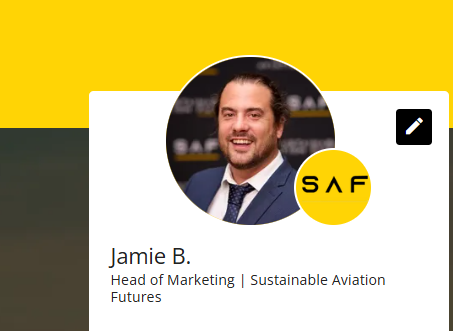
Add your profile picture first.
Attendees with a profile picture are significantly more likely to be approached for connections and meetings. A clear headshot makes you findable in a list of hundreds.
Write your "About"
This is what attendees read when they're deciding whether to connect with you. Cover who you are, your role, who you want to meet, and your focus areas in the industry.
Tags & LinkedIn
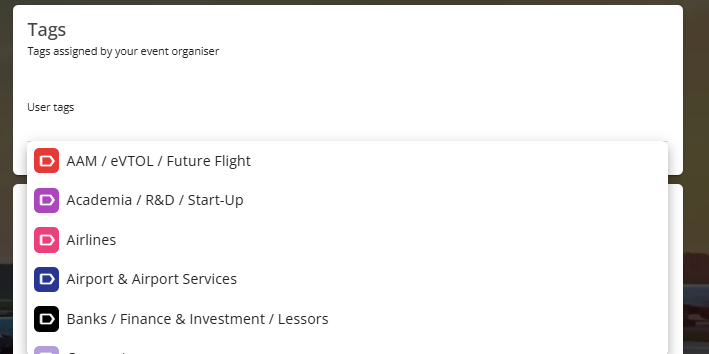
Tags categorize you by your part of the SAF value chain. We've pre-assigned tags for you. If any need changing, email jamie.bentley@safcongress.com and we'll sort it.
At the bottom of your profile. This is one of the biggest drivers of strong AI matches, so don't skip it.
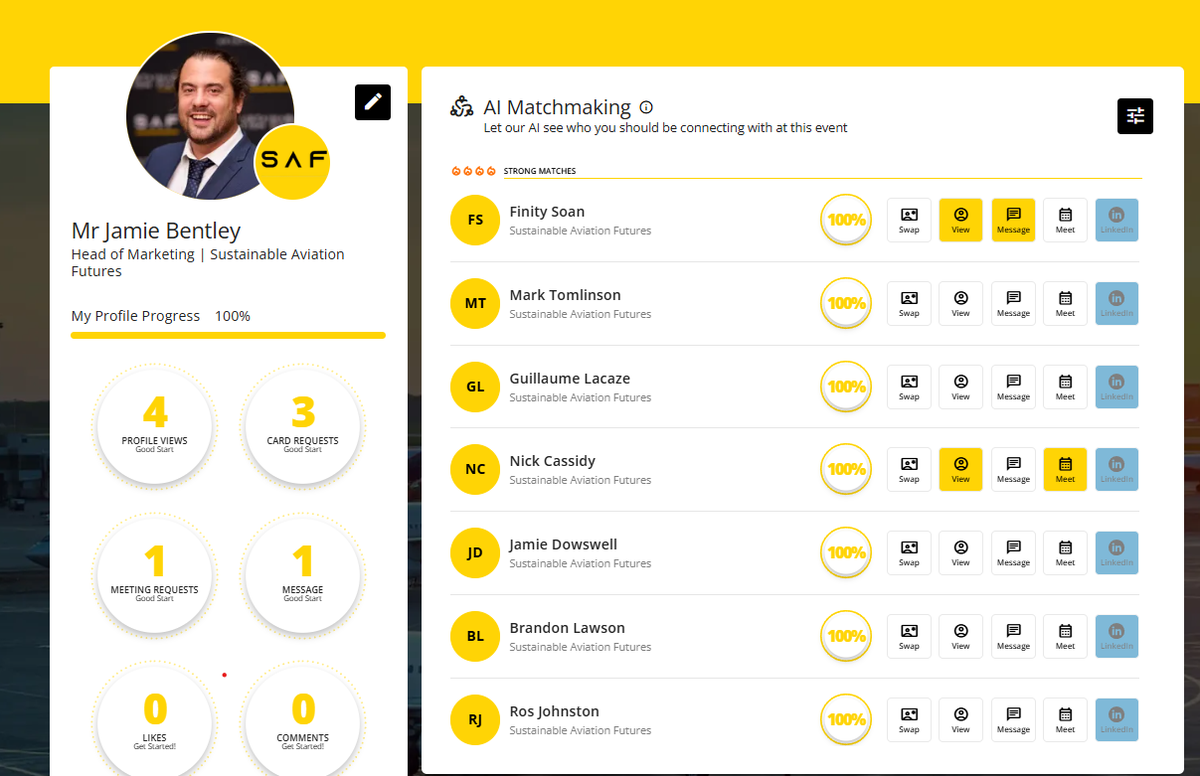
Once your profile is up to date, the AI starts working for you, surfacing the attendees most worth your time based on your tags, interests and LinkedIn.
Watch the video guideYour matches appear on the right-hand side, ranked by match strength.
Tell the AI what matters most: tags, professional interests, or both. Move the sliders toward "Similar" for tight matches, or "Different" to reach beyond your usual circle.
Swap business cards, message them directly, book a meeting, or connect on LinkedIn, all from the match row.
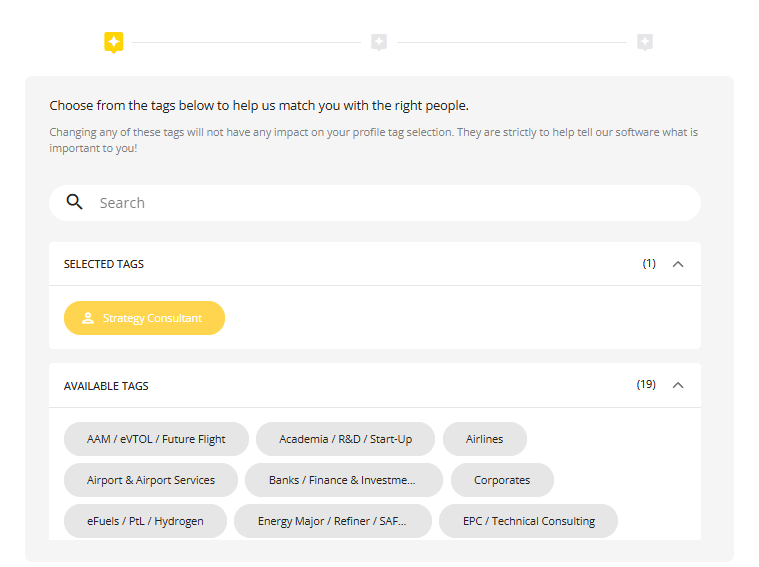
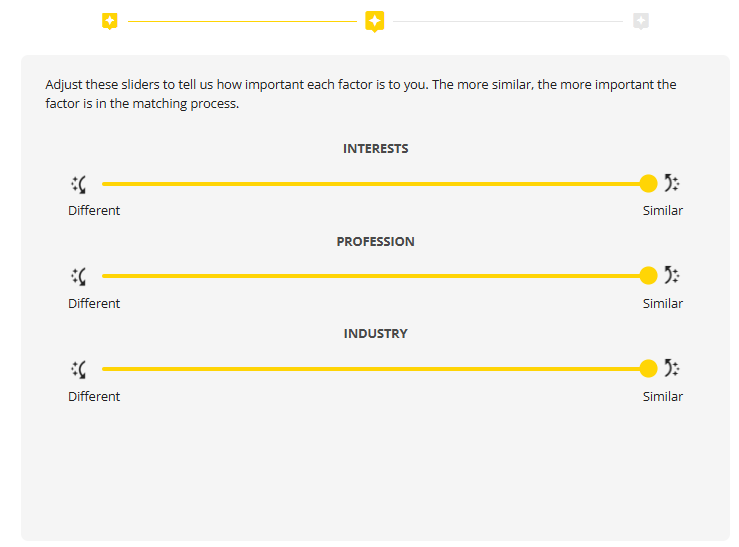

Try the "Different" slider once.
The AI defaults to people like you. But the attendee list spans the whole SAF value chain: refiners, airlines, feedstock producers, investors, policymakers. Drag a slider toward "Different" and you might find the partner you'd never have searched for.
The agenda lives on the SAF North America Congress website, so the app always opens the latest version. Sessions, speakers and timings are updated there first.
Watch the video guideFind it in the left-hand menu, or tap the Agenda tile on the home screen.
The live agenda opens on safcongressna.com. Work through each day to plan which sessions you want to attend.
Sessions and speakers are still being added, so take another look in the days before the event.

Plan your meetings around the sessions.
Check the agenda before you book meetings, so you don't lock in a 1-2-1 during the session you most want to see.
If you're hunting for a specific company rather than an individual, Project Partners is your starting point.
Find it in the left-hand menu.
Type the company name into the search bar.
Click into the profile to see their team, description and contact options.
The fastest route: pick a representative from the right-hand side of the profile and message them directly, or leave your business card with the company. You can also schedule a meeting from the buttons at the top of the page.
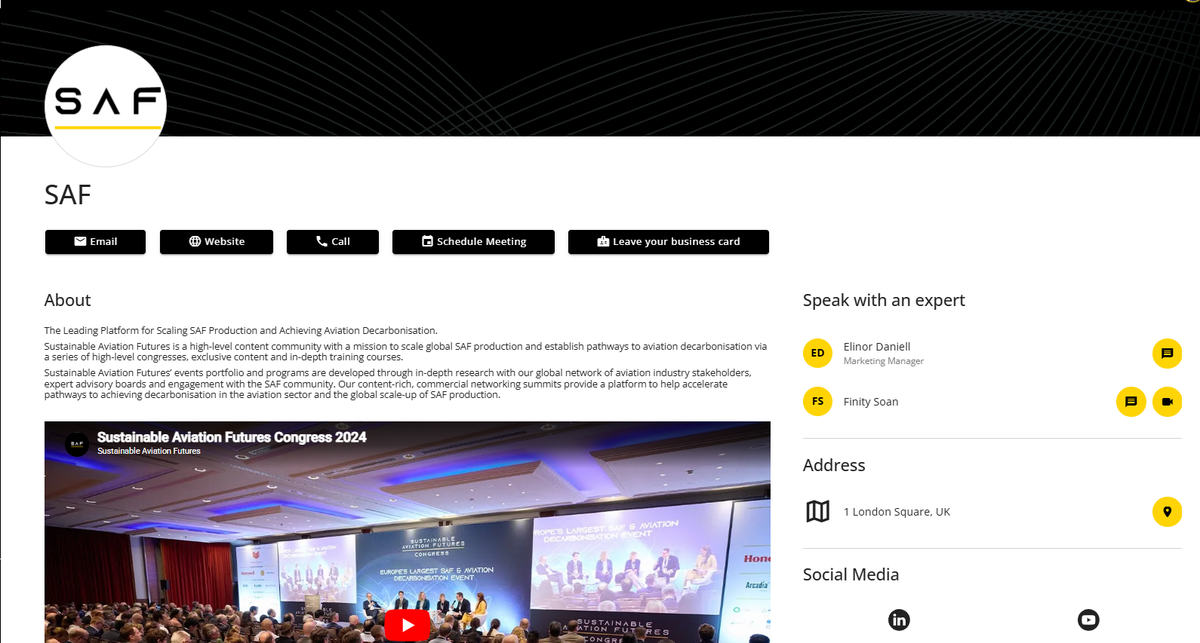
Always go through a named rep, not the company inbox.
Generic "Leave a business card" requests can sit in a queue. A direct message to a specific representative almost always gets a faster, more personal reply. Check the team on the right of the profile and pick the most relevant person.
If you'd rather start from a person than a company, the attendee directory is your friend.
From the left-hand menu. Attendees are grouped by sector to help you narrow down.
By name, company, job title or tag.
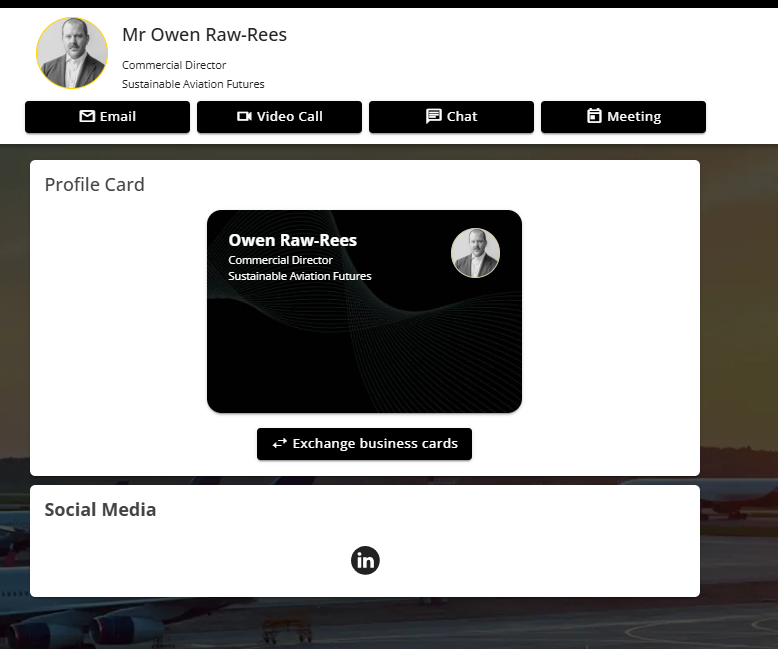
Email them directly, chat inside the app, exchange virtual business cards, or set up a meeting.
My Connections
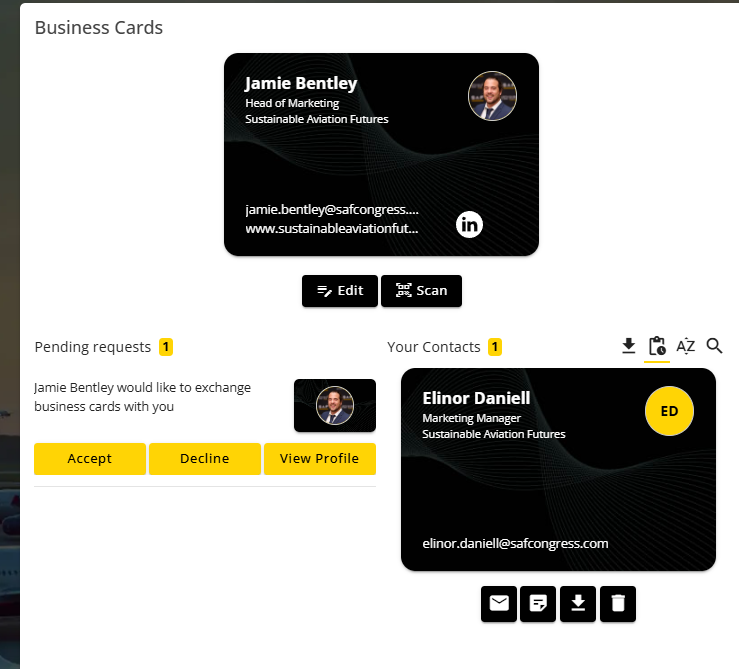
When you exchange business cards with someone and they accept, their card lands automatically in My Connections in the left-hand menu (also My Business Cards in your profile menu). You'll also see pending requests waiting for your response.
Send a message before you send a meeting invite.
A cold meeting request out of nowhere often gets ignored. A short, personal message first, such as "saw you're speaking on feedstock supply, would love to compare notes", makes the meeting far more likely to be accepted. The relationship comes before the calendar invite.
There are two ways to capture contacts through the app: exchange business cards in the weeks before the event, then scan badges on site. Either way, every contact lands in one place for follow-up.
Watch the video guidePhase 1 · Before the event
From the left-hand menu, search by name, company or role.
Open their profile and tap Exchange business cards to send a request.
Once accepted, they appear in your contacts, ready to message or book a meeting.

From the left-hand menu, or tap Scan in My Business Cards.
Point your camera at the QR code on their badge.
The contact is saved to your contacts automatically.

Start in Phase 1.
The attendee list goes live in the app weeks before the event. Exchange cards early and you'll arrive with conversations already started, not just a scanner in your hand.
Every business card exchange and badge scan is saved in one list, and you can export it whenever you like.
Tap your profile picture (top right), then My Business Cards. It's also in the left-hand menu as My Connections.
Confirmed contacts sit under Your Contacts. Pending requests waiting for your response are on the left.
Tap the download icon above Your Contacts to export everyone, or use the download button under any single card.


The single best use of the app. Lock in your meetings before Day 1 and your three days in Houston become focused conversations, not a scramble.
Watch the video guideIf you know who you want to meet
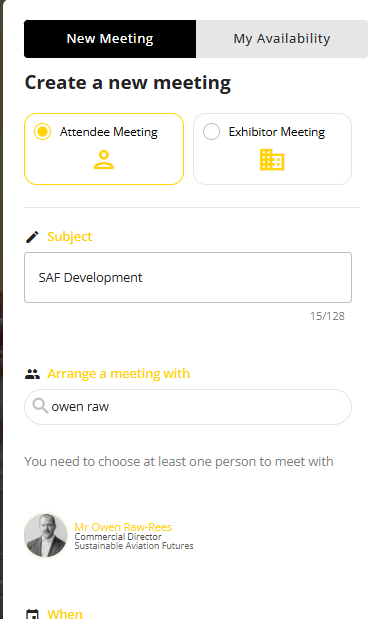
Open Meeting Planner from the left-hand menu, then click "New Meeting".
Give your meeting a clear subject (e.g. "SAF offtake discussion"), then search for the attendee you want to meet.
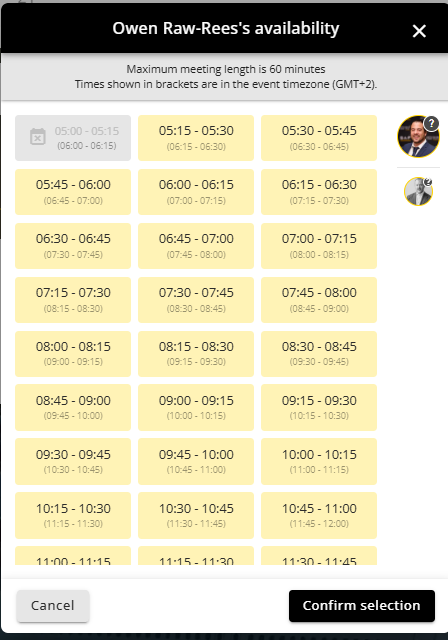
You'll see their availability. Pick a slot that works for both of you.
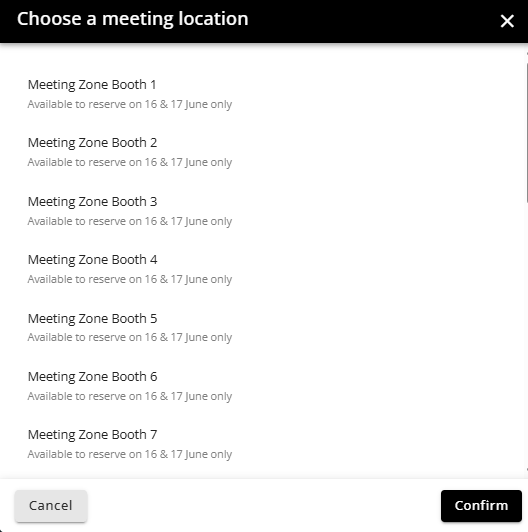
Pick a Meeting Zone booth, or suggest a custom location like "Meet at the registration desk".
Once confirmed, the meeting lands in My Meetings in the menu.
Book the prime slots before Day 1.
The slots just after the coffee and lunch breaks go fastest, because people are settled and have time for a proper conversation. Lock them in early. And if you're meeting someone senior, book a Meeting Zone booth rather than the corridor: fewer interruptions, better outcome.
If you're not sure who to meet yet
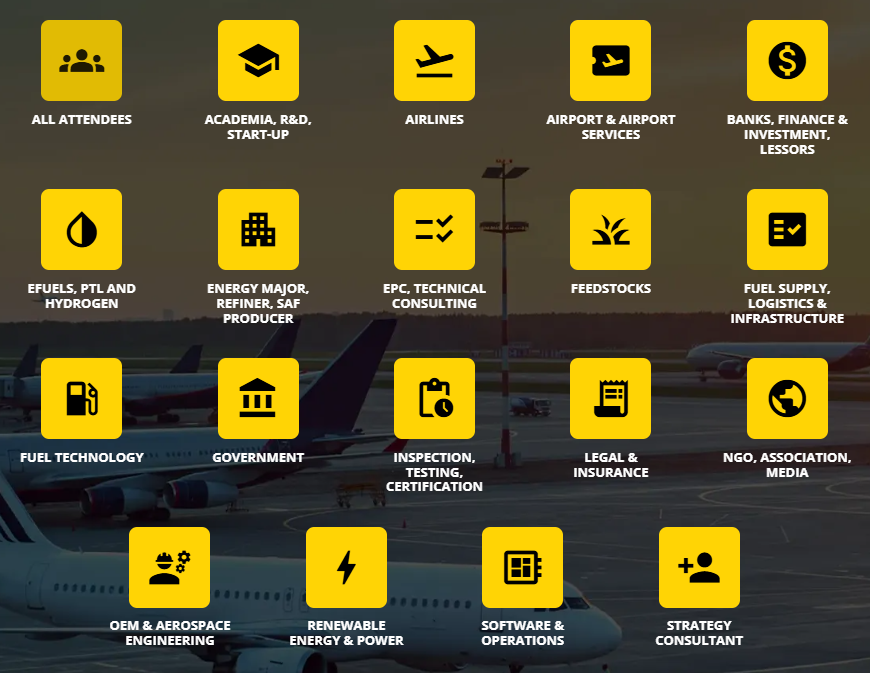
Start in the Attendees list. Delegates are grouped by sector to help you narrow down. Pick the categories that match what you're looking for, then book meetings with the most promising contacts from there.
This year we're running a competition inside the app. The more you interact, the more points you earn, and there are prizes for the top 3 app influencers.
You earn points for actions like:
Profile picture, About, tags, LinkedIn. Every field counts.
Exchange business cards, send messages, book meetings.
Use AI matchmaking, browse company profiles, view the agenda.
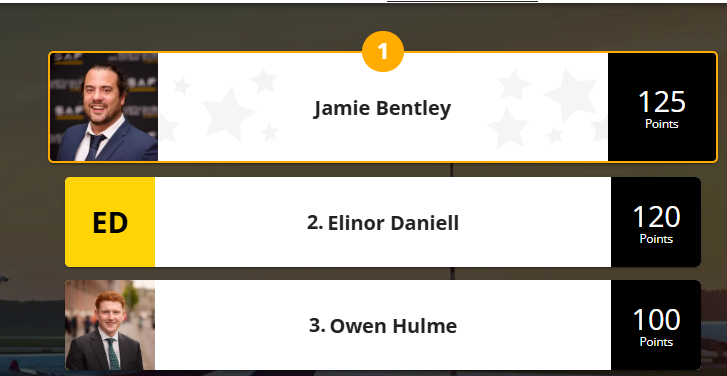
The leaderboard rewards habits, not heroics.
Don't try to scramble points on Day 3. The winners set up their profile properly early, start AI matching straight away, and book a handful of meetings before the doors open. Steady engagement beats last-minute spam.